2013:
Razer Hangout July 15th (1:00:00)

Virtual Controller Example (41:37)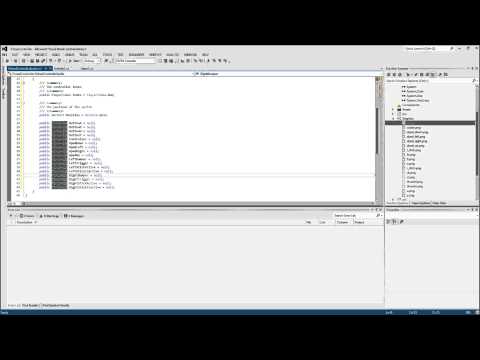
|
InAppPurchases - In-App-Purchase Example
SetResolutions - Set Resolutions Example
VirtualController - Virtual Controllers Example Using OUYA-Everywhere Input
-
Download the latest MonoGame release.
-
Download the MonoGame Dependencies and unpack into the
ThirdParty\Dependenciesfolder. -
Run
Protobuild.exein the root source folder to generate the build solutions. -
Compile
MonoGame.Framework.Android.slninReleasemode. -
Copy the compiled
MonoGame libariesinto your C# project.
MonoGame.Framework\bin\Android\AnyCPU\Release\Lidgren.Network.dll
MonoGame.Framework\bin\Android\AnyCPU\Release\MonoGame.Framework.dll
MonoGame.Framework\bin\Android\AnyCPU\Release\MonoGame.Framework.Net.dll
- Learn
MonoGameby browsing the MonoGame Samples.
The auto update process requires that you use the same keystore in your app and every update.
If you lose your keystore, it requires users to uninstall the game and redownload to get the next update.
If you keep using the same keystore after that, the auto updating will continue as intended.
In MonoGame, unload your project and edit the CSPROJ. Add the following settings to your valid keystore:
<AndroidKeyStore>True</AndroidKeyStore>
<AndroidSigningKeyStore>PathToYourKeyStoreFile\key.keystore</AndroidSigningKeyStore>
<AndroidSigningStorePass>my_password_here</AndroidSigningStorePass>
<AndroidSigningKeyAlias>Aranda</AndroidSigningKeyAlias>
<AndroidSigningKeyPass>same_password_here</AndroidSigningKeyPass>
It's important that your key signing, your package name, bundle identifiers, developer id, and the account that submits the game all matches.
The above has to true for the in-app-purchases to function, since decryption depends on using the right signing key.
MonoGame has an environmental build settings for advanced users to configure.
ouya/Resources/environment.txt
These settings aren't for every game, but the following environmental tweaks reduce the amount of garbage collection thrashing.
MONO_GC_PARAMS=soft-heap-limit=512m,nursery-size=64m,evacuation-threshold=66,major=marksweep,concurrent-sweep
Right-click the solution and select the Restore NuGet Packages menu item if you see an error about This project references NuGet package(s) that are missing on this computer. Enable NuGet Package Restore to download them. For more information, see http://go.microsoft.com/fwlink/?LinkID=322105..

MonoGame Download - http://www.monogame.net/
(old) ODK Bindings for C# - https://github.com/slygamer/ouya-csharp
Mono for Android - http://xamarin.com/monoforandroid
Installation Instructions - http://docs.xamarin.com/guides/android/getting_started/installation
MonoGame GIT for latest tools - https://github.com/mono/MonoGame
MonoGame OUYA Examples - https://github.com/ouya/ouya-sdk-examples
MonoGame Content Builder - https://github.com/mono/MonoGame/wiki/MonoGame-Content-Builder
Docs and Tutorials - http://www.monogame.net/documentation
Binding JARs - http://docs.xamarin.com/guides/android/advanced_topics/java_integration_overview/binding_a_java_library_(.jar)/
In order to use MonoGame 3.5, the min API level has to be set to 16, target API level 21, and compile API level 21.
MonoGame 3.4 added proper pause/resume support which allows textures and other content to reload when the game is reopened from the launcher.
- In Visual Studio, right-click the
MonoGameproject and select properties.
A target API of 16 or below will crash on launch with the unhandled exception System.MissingMethodException: Method 'AudioManager.GetProperty' not found.
The target API of 21 is necessary starting with ODK 2.1.0 or better for Android TV support on Forge TV.

Since OUYA uses API level 16, you'll have to use a MonoGame version prior to 3.4 to avoid runtime issues with OpenAL.
The Virtual Controller example shows 4 images of the OUYA Controller which moves axises and highlights buttons when the physical controller is manipulated.

The In-App-Purchase example uses the ODK to access gamer info, purchasing, and receipts.

OUYA-Everywhere Input remaps controllers as if they are an OuyaController.
The screensaver will be disabled in the Activity OnCreate event by adding the OuyaInputView which also provides OUYA-Everywhere Input.
#if MONOGAME_3_4
		SetContentView((View)_game.Services.GetService(typeof(View)));
#endif

		// Add OUYA-Everywhere Input and disable screensaver
		using (var ignore = new TV.Ouya.Sdk.OuyaInputView(this))
		{
			// do nothing
		}
After checking input, be sure to invoke ClearButtonStates at the end of the draw/update to clear the controller pressed/released states for the next frame.
		protected override void Draw(GameTime gameTime)
		{
			// draw things...
			base.Draw (gameTime);

			OuyaInput.ClearButtonStates();
		}
MonoGame uses the same axis constants that are used in the Java Cortex SDK.
OuyaController.AXIS_LS_X
OuyaController.AXIS_LS_Y
OuyaController.AXIS_RS_X
OuyaController.AXIS_RS_Y
OuyaController.AXIS_L2
OuyaController.AXIS_R2
MonoGame uses the same button constants that are used in the Java Cortex SDK.
OuyaController.BUTTON_O
OuyaController.BUTTON_U
OuyaController.BUTTON_Y
OuyaController.BUTTON_A
OuyaController.BUTTON_L1
OuyaController.BUTTON_L3
OuyaController.BUTTON_R1
OuyaController.BUTTON_R3
OuyaController.BUTTON_DPAD_DOWN
OuyaController.BUTTON_DPAD_LEFT
OuyaController.BUTTON_DPAD_RIGHT
OuyaController.BUTTON_DPAD_UP
OuyaController.BUTTON_MENU
GetAxis returns the axis value given the playerNum (0, 1, 2, or 3) and an axis constant.
float GetAxis(int playerNum, int axis);

float lx = OuyaInput.GetAxis(0, OuyaController.AXIS_LS_X);
float ly = OuyaInput.GetAxis(0, OuyaController.AXIS_LS_Y);
float rx = OuyaInput.GetAxis(0, OuyaController.AXIS_RS_X);
float ry = OuyaInput.GetAxis(0, OuyaController.AXIS_RS_Y);
float l2 = OuyaInput.GetAxis(0, OuyaController.AXIS_L2);
float r2 = OuyaInput.GetAxis(0, OuyaController.AXIS_R2);
GetButton returns the button state given the playerNum (0, 1, 2, or 3) and a button constant.
GetButton returns true if the button is currently pressed or returns false if the button is currently released.
bool GetButton(int playerNum, int button)

if (OuyaInput.GetButton(0, OuyaController.BUTTON_O))
{
}

if (OuyaInput.GetButton(0, OuyaController.BUTTON_U))
{
}

if (OuyaInput.GetButton(0, OuyaController.BUTTON_Y))
{
}

if (OuyaInput.GetButton(0, OuyaController.BUTTON_A))
{
}

if (OuyaInput.GetButton(0, OuyaController.BUTTON_L1))
{
}

if (OuyaInput.GetButton(0, OuyaController.BUTTON_L3))
{
}

if (OuyaInput.GetButton(0, OuyaController.BUTTON_R1))
{
}

if (OuyaInput.GetButton(0, OuyaController.BUTTON_R3))
{
}

if (OuyaInput.GetButton(0, OuyaController.BUTTON_DPAD_DOWN))
{
}

if (OuyaInput.GetButton(0, OuyaController.BUTTON_DPAD_LEFT))
{
}

if (OuyaInput.GetButton(0, OuyaController.BUTTON_DPAD_RIGHT))
{
}

if (OuyaInput.GetButton(0, OuyaController.BUTTON_DPAD_UP))
{
}
GetButton can also be used without the playerNum parameter to find if a button was pressed on any controller.
bool GetButton(int button)

if (OuyaInput.GetButton(OuyaController.BUTTON_O))
{
}
GetButtonDown returns the last button state given the playerNum (0, 1, 2, or 3) and a button constant.
GetButtonDown returns true if the last frame detected a pressed event.
BUTTON_MENU should be detected using GetButtonDown.
bool GetButtonDown(int playerNum, int button);

if (OuyaInput.GetButtonDown(0, OuyaController.BUTTON_MENU))
{
}
GetButtonDown can also be used without the playerNum parameter to find if a button pressed event happened on any controller.
bool GetButtonDown(int button)

if (OuyaInput.GetButtonDown(OuyaController.BUTTON_O))
{
}
GetButtonUp returns the last button state given the playerNum (0, 1, 2, or 3) and a button constant.
GetButtonUp returns true if the last frame detected a released event.
BUTTON_MENU should be detected using GetButtonUp.
bool GetButtonUp(int playerNum, int button);

if (OuyaInput.GetButtonDown(0, OuyaController.BUTTON_MENU))
{
}
GetButtonUp can also be used without the playerNum parameter to find if a button released event happened on any controller.
bool GetButtonUp(int button)

if (OuyaInput.GetButtonUp(OuyaController.BUTTON_O))
{
}
ButtonData gives you button names and button textures for the OuyaController button codes on the OUYA, MOJO, and Xiaomi consoles.

		public OuyaController.ButtonData GetButtonData(int button)
		{
			return OuyaController.GetButtonData(button);
		}
ButtonData has a string name that returns the console specific button name. I.e. on OUYA the OuyaController.BUTTON_O name is O versus on the Xiaomi console as A.
		public string GetButtonName(int button)
		{
			OuyaController.ButtonData buttonData = OuyaController.GetButtonData(button);
			if (null == buttonData) {
				return string.Empty;
			}
			return buttonData.ButtonName;
		}
ButtonData has a BitmapDrawable that can be converted to a Texture2D to be drawn in a SpriteBatch.
		public Texture2D GetButtonTexture(int button)
		{
			OuyaController.ButtonData buttonData = OuyaController.GetButtonData(button);
			if (null == buttonData)
			{
				return null;
			}
			BitmapDrawable drawable = (BitmapDrawable)buttonData.ButtonDrawable;
			if (null == drawable)
			{
				return null;
			}
			Bitmap bitmap = drawable.Bitmap;
			if (null == bitmap)
			{
				return null;
			}
			using (MemoryStream ms = new MemoryStream ())
			{
				bitmap.Compress (Bitmap.CompressFormat.Png, 100, ms);
				ms.Position = 0;
				return Texture2D.FromStream (GraphicsDevice, ms);
			}
		}
The following examples are within the context of a class that extends Microsoft.Xna.Framework.AndroidGameActivity.
Your game Activity will need to pass OnActivityResult events to the OuyaFacade.
		protected override void OnActivityResult (int requestCode, Result resultCode, Intent data)
		{
			if (null != ouyaFacade) {
				ouyaFacade.ProcessActivityResult (requestCode, (int)resultCode, data);
			}
		}
By extending RequestGamerInfoListener, the OnSuccess and OnFailure events can be overloaded and will be invoked when the asynchronous RequestGamerInfo method completes.
		public class CustomRequestGamerInfoListener : RequestGamerInfoListener
		{
			private const string TAG = "CustomRequestGamerInfoListener";
			public override void OnSuccess(Java.Lang.Object jObject) {
				GamerInfo gamerInfo = jObject.JavaCast<GamerInfo>();
				if (null == gamerInfo) {
					Log.Error (TAG, "GamerInfo is null!");
				} else {
					Log.Info (TAG, "OnSuccess uuid=" + gamerInfo.Uuid + " username=" + gamerInfo.Username);
				}
			}
			public override void OnFailure(int errorCode, String errorMessage, Bundle optionalData) {
				Log.Error (TAG, "OnFailure errorCode=" + errorCode + " errorMessage=" + errorMessage);
			}
		}

		RequestGamerInfoListener requestGamerInfoListener = new CustomRequestGamerInfoListener();

		// first parameter is a reference to the Activity
		ouyaFacade.RequestGamerInfo(this, requestGamerInfoListener);
By extending RequestProductsListener, the OnSuccess and OnFailure events can be overloaded and will be invoked when the asynchronous RequestProductList method completes.
		public class CustomRequestProductsListener : RequestProductsListener
		{
			private const string TAG = "CustomRequestProductsListener";
			public override void OnSuccess(Java.Lang.Object jObject) {
				JavaList<Product> products = jObject.JavaCast<JavaList<Product>> ();
				if (null == products) {
					Log.Error (TAG, "Products are null!");
				} else {
					Log.Info (TAG, "OnSuccess Count="+products.Count);
				}
			}
			public override void OnFailure(int errorCode, String errorMessage, Bundle optionalData) {
				Log.Error (TAG, "OnFailure errorCode=" + errorCode + " errorMessage=" + errorMessage);
			}
		}

		RequestProductsListener requestProductsListener = new CustomRequestProductsListener();

		// sample purchasables
		string[] purchasables =
		{
			"long_sword",
			"sharp_axe",
			"cool_level",
			"awesome_sauce",
			"__DECLINED__THIS_PURCHASE",
		};

		List<Purchasable> products = new List<Purchasable>();
		foreach (string identifier in purchasables)
		{
			Purchasable purchasable = new Purchasable(identifier);
			products.Add(purchasable);
		}

		// first parameter is a reference to the Activity
		ouyaFacade.RequestProductList(this, products, requestProductsListener);
By extending RequestPurchaseListener, the OnSuccess, OnFailure, and OnCancel events can be overloaded and will be invoked when the asynchronous RequestPurchase method completes.
		public class CustomRequestPurchaseListener : RequestPurchaseListener
		{
			private const string TAG = "CustomRequestPurchaseListener";
			public override void OnSuccess(Java.Lang.Object jObject) {
				PurchaseResult purchaseResult = jObject.JavaCast<PurchaseResult>();
				if (null == purchaseResult) {
					Log.Error (TAG, "PurchaseResult is null!");
				} else {
					Log.Info (TAG, "OnSuccess identiifer"+purchaseResult.ProductIdentifier);
				}
			}
			public override void OnFailure(int errorCode, String errorMessage, Bundle optionalData) {
				Log.Error (TAG, "OnFailure errorCode=" + errorCode + " errorMessage=" + errorMessage);
			}
			public override void OnCancel() {
				Log.Error (TAG, "Purchase was cancelled");
			}
		}

		RequestPurchaseListener requestPurchaseListener = new CustomRequestPurchaseListener();

		Purchasable purchasable = new Purchasable("long_sword"); // the identifier being purchased

		// first parameter is a reference to the Activity
		ouyaFacade.RequestPurchase(this, purchasable, requestPurchaseListener);
By extending RequestReceiptsListener, the OnSuccess, OnFailure, and OnCancel events can be overloaded and will be invoked when the asynchronous RequestReceipts method completes.
		public class CustomRequestReceiptsListener : RequestReceiptsListener
		{
			private const string TAG = "CustomRequestReceiptsListener";
			public override void OnSuccess(Java.Lang.Object jObject) {
				JavaCollection<Receipt> receipts = jObject.JavaCast<JavaCollection<Receipt>> ();
				if (null == receipts) {
					Log.Error (TAG, "Receipts are null!";
				} else {
					Log.Info (TAG, "Request Receipts: OnSuccess Count="+receipts.Count);
				}
			}
			public override void OnFailure(int errorCode, String errorMessage, Bundle optionalData) {
				Log.Error (TAG, "OnFailure errorCode=" + errorCode + " errorMessage=" + errorMessage);
			}
			public override void OnCancel() {
				Log.Error (TAG, "Receipt request was cancelled");
			}
		}

		RequestReceiptsListener requestReceiptsListener = new CustomRequestReceiptsListener();

		// first parameter is a reference to the Activity
		ouyaFacade.RequestReceipts(this, requestReceiptsListener);
A common mistake is to leave sounds and music playing after the application has ended.
If you used the XNA MediaPlayer object, be sure to Stop() when the user quits the application.
Microsoft.Xna.Framework.Media.MediaPlayer.Stop();
Place the Xiaomi libraries in the following destinations:
Assets/MiGameCenterSDKService.apk
MiGameCenterSDKService.apk should be set as AndroidAsset.

SDK_MIBOX_2.0.1.jar should be set as AndroidJavaLibrary.
Jars/SDK_MIBOX_2.0.1.jar

Some of the AndroidManifest.xml options can be edited in the Project Options on your MonoGame project. To add all the permissions, browse to your project Properties folder to edit the raw AndroidManifest.xml.

MonoGame supports initialization strings similar to Java syntax to make the game compatible with OUYA Everywhere devices.
-
tv.ouya.developer_id- The developer UUID can be found in the developer portal after logging in. -
com.xiaomi.app_id- The Xiaomi App Id is provided by the content team, emailofficehours@ouya.tvto obtain your key. -
com.xiaomi.app_key- The Xiaomi App Key is provided by the content team, emailofficehours@ouya.tvto obtain your key. -
tv.ouya.product_id_list- The product id list is a comma separated list of product ids that can be purchased in the game.
			Bundle developerInfo = new Bundle();

			byte[] applicationKey = null;

			// load the application key from assets
			try {
				AssetManager assetManager = ApplicationContext.Assets;
				AssetFileDescriptor afd = assetManager.OpenFd("key.der");
				int size = 0;
				if (null != afd) {
					size = (int)afd.Length;
					afd.Close();
					using (Stream inputStream = assetManager.Open("key.der", Access.Buffer))
					{
						applicationKey = new byte[size];
						inputStream.Read(applicationKey, 0, size);
						inputStream.Close();
					}
				}
			} catch (Exception e) {
				Log.Error (TAG, string.Format("Failed to read application key exception={0}", e));
			}

			if (null != applicationKey) {
				Log.Debug (TAG, "Read signing key");
				developerInfo.PutByteArray (OuyaFacade.OUYA_DEVELOPER_PUBLIC_KEY, applicationKey);
			} else {
				Log.Error (TAG, "Failed to authorize with signing key");
				Finish ();
				return;
			}

			string[] purchasables =
			{
				"long_sword",
				"sharp_axe",
				"cool_level",
				"awesome_sauce",
				"__DECLINED__THIS_PURCHASE",
			};

			developerInfo.PutString(OuyaFacade.OUYA_DEVELOPER_ID, "00000000-0000-0000-0000-000000000000");
			developerInfo.PutString(OuyaFacade.XIAOMI_APPLICATION_ID, "0000000000000");
			developerInfo.PutString(OuyaFacade.XIAOMI_APPLICATION_KEY, "000000000000000000");
			developerInfo.PutStringArray(OuyaFacade.OUYA_PRODUCT_ID_LIST, purchasables);

			_ouyaFacade = OuyaFacade.Instance;
_ouyaFacade.Init(this, developerInfo);MonoGame uses standard Android localization for localized string resources.
String resources must be included in the project and marked as an AndroidResource.

Strings can be placed in designated folders which are automatically selected using the current language.
-
Resources/Values/Strings.xml(Default) -
Resources/Values-de/Strings.xml(Dutch) -
Resources/Values-en/Strings.xml(English) -
Resources/Values-es/Strings.xml(Spanish) -
Resources/Values-fr/Strings.xml(French) -
Resources/Values-it/Strings.xml(Italian) -
Resources/Values-zh-rCN/Strings.xml(Simplified Chinese)
Within the Activity or using a reference to the Activity, the resource strings can be found.
The current Locale will automatically select the right String resource.
		private String GetStringResource(String name) {
			Resources resources = Resources;
			if (null == resources) {
				return String.Empty;
			}
			int id = resources.GetIdentifier (name, "string", PackageName);
			if (id <= 0) {
				return "";
			}
			return resources.GetString(id);
		}
Use the content view to disable the screensaver in MonoGame from the Activity before running your customized Microsoft.Xna.Framework.Game. This parallels the Java example using the Xamarin auto-generated bind syntax.
public class Activity1 : Microsoft.Xna.Framework.AndroidGameActivity
{
	protected override void OnCreate(Bundle bundle)
	{
        var g = new Game1();
        SetContentView(g.Window);

		// Add OUYA-Everywhere Input
		using (var ignore = new TV.Ouya.Sdk.OuyaInputView(this))
		{
			// do nothing
		}

		// Get the Content View to disable the screensaver
		View content = FindViewById (Android.Resource.Id.Content);
		if (null != content) {
			// Disable screensaver
			content.KeepScreenOn = true;
		}
        g.Run();
	}
}