Whether you're shipping apps with multiple Flutter versions or compiling the engine from source, flutter_compile has you covered — from the CLI to your IDE.
If you've ever needed to juggle multiple Flutter SDK versions across projects, or tried to set up a Flutter engine contributor environment from scratch, you know the pain. Version managers handle the first problem. Wiki pages and tribal knowledge handle the second. Nothing handles both.
flutter_compile bridges that gap. It's a single CLI (plus IDE extensions for VS Code and IntelliJ) that gives every Flutter developer SDK management and gives every Flutter contributor an automated path from gclient sync to ninja builds — no manual wiki steps required.
Let's walk through what it does and how to use it.
dart pub global activate flutter_compileThat's it. Both flutter_compile and the shorter fcp alias are now available:
fcp --version
fcp doctor
Requirements: macOS, Linux, or Windows. Git and Python 3 must be installed. On Windows, Visual Studio with the C++ workload is needed for engine builds.
You're working on three Flutter projects. One requires 3.19, another runs on stable, and a third is pinned to 3.24. You need to switch between them without breaking anything — and each project's packages shouldn't bleed into the others.
# Install multiple versions side-by-side
fcp sdk install 3.19.0
fcp sdk install 3.24.0
fcp sdk install stable

# Set a global default
fcp sdk global 3.24.0

# Pin a specific version to a project
cd my-legacy-app
fcp sdk use 3.19.0    # writes .flutter-version

# Run commands through the resolved SDK
fcp sdk exec flutter doctor
fcp sdk exec dart analyze
Each installed SDK gets its own isolated PUB_CACHE, so packages never conflict across versions.
Resolution order: When you run fcp sdk exec, the tool checks for a .flutter-version file in your project first, then falls back to your global default. This means your projects always get the right SDK without you thinking about it.
fcp sdk list              # shows all installed, marks (global) and (project)
fcp sdk remove 3.19.0 # delete when you're doneContributing to the Flutter framework or engine means following a multi-step setup process: cloning repos, configuring git remotes, installing depot_tools, running gclient sync (and debugging it when it fails), and remembering the right GN flags for your target platform. This can take hours of manual work, and one wrong step means starting over.
flutter_compile automates the entire contributor workflow into simple commands.
fcp install flutterThis clones flutter/flutter, sets up your upstream and fork remotes, and configures everything needed for framework development. The tool walks you through providing your GitHub fork URL interactively.
fcp install engineThis is where the real magic happens. The engine lives inside the Flutter checkout (monorepo alignment with flutter/flutter), and setting it up normally requires:
- Installing depot_tools
- Creating a
.gclientconfiguration file - Running
gclient sync(which can take 30-60 minutes and often fails) - Configuring PATH variables
fcp install engine handles all of this. It finds or installs depot_tools, generates the correct .gclient config, runs gclient sync with automatic retry on failure, and saves all paths to your configuration. If something goes wrong, it provides clear recovery instructions instead of cryptic error messages.
Use --force to force a clean sync if your repo gets into a bad state:
fcp install engine --forcefcp install devtoolsClones flutter/devtools and configures it for contributor development.
fcp sync              # sync all environments with upstream
fcp sync engine       # just the engine
fcp sync engine --force # force sync with --resetOnce your contributor environment is set up, the build-run-test cycle becomes trivial.
# Host platform, debug, unoptimized (fastest for development)
fcp build engine

# Android release build
fcp build engine --platform android --mode release

# iOS simulator on Apple Silicon
fcp build engine --platform ios --simulator

# Skip GN step for incremental rebuilds
fcp build engine --no-gn
The tool automatically prepends depot_tools to your PATH, resolves the correct GN flags for your target platform/CPU/mode combination, and runs ninja. No need to remember gn gen incantations.
fcp runLaunches your Flutter app using your locally-built engine. It resolves the active SDK and wires up the --local-engine flag automatically.
fcp testSame idea — runs tests against your local engine build.
fcp status    # engine config, build directory sizes
fcp clean # list builds with disk usage, optionally deletefcp doctorDoctor runs health checks across four categories:
- Required Tools — git, python3, dart, flutter
- Engine Tools — gclient (depot_tools), ninja, Xcode (macOS), Visual Studio (Windows)
- Configuration — validates your
.flutter_compilercsettings file - Environments — checks Flutter, Engine, and DevTools contributor setups (path exists, valid git repo, correct remotes)
Each check shows a clear pass/fail status. Need machine-readable output?
fcp doctor --jsonThe CLI is powerful, but most of us live in our IDEs. flutter_compile ships extensions for both VS Code and IntelliJ/Android Studio that bring the full SDK management experience into your editor.
Install from the VS Code Marketplace or search Flutter Compile in the Extensions panel.
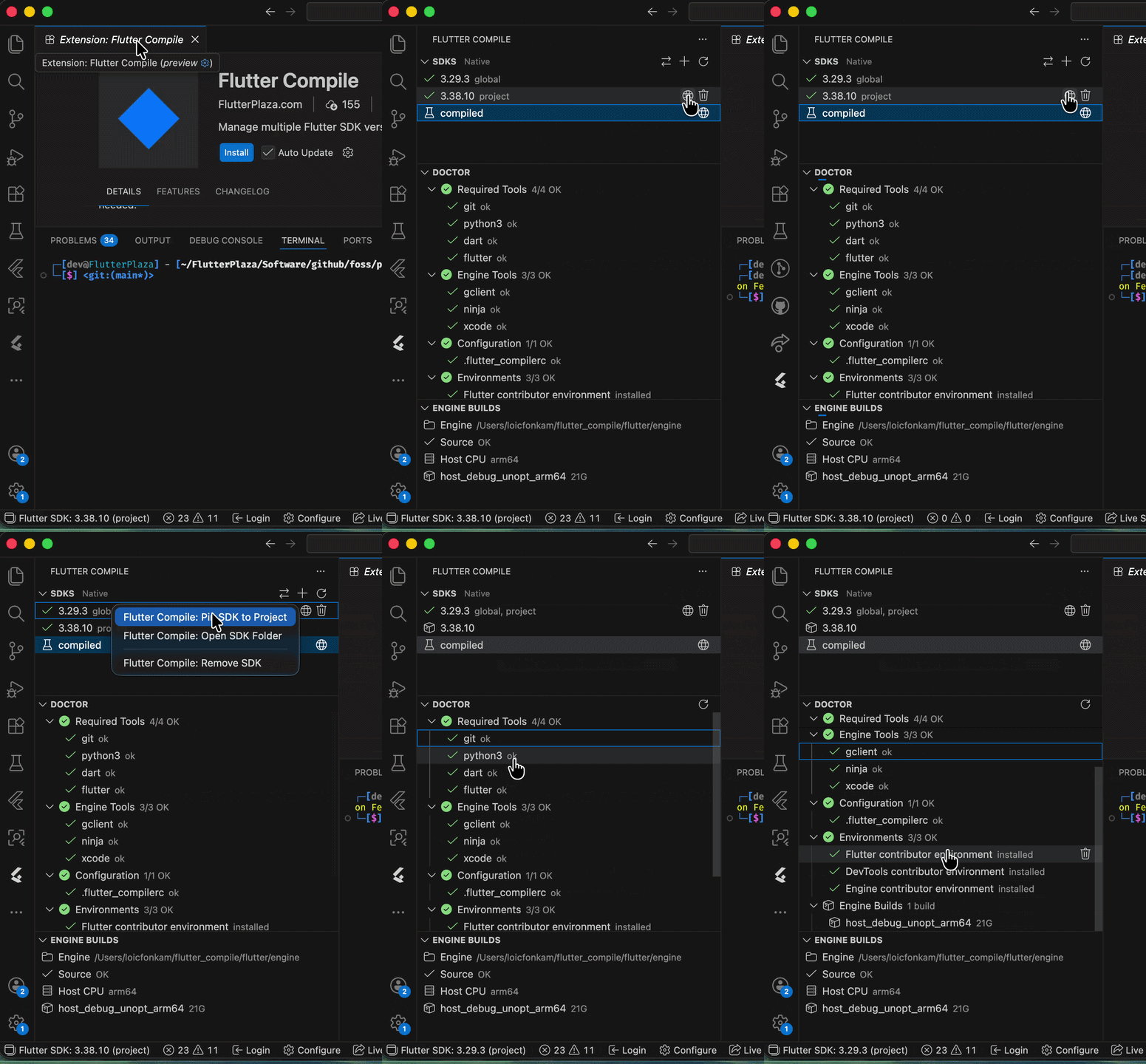
What you get:
- SDK Manager sidebar — browse, install, switch, pin, and remove Flutter SDKs without leaving VS Code
- Native/FVM toggle — switch between flutter_compile's native backend and FVM with one click. The view title updates to show "SDKs — Native" or "SDKs — FVM"
- Doctor panel — grouped diagnostic checks with install/fix actions for failing items
- Engine Builds panel — monitor engine build status, initialize, build, and delete from the sidebar
- Status bar — always-visible SDK version indicator. Click to switch instantly
- Auto-configuration — switching SDKs automatically updates
dart.flutterSdkPathin your workspace settings. No restart needed - File watcher — edit
.flutter-versionfrom the terminal or another tool, and VS Code picks up the change immediately


Install from the JetBrains Marketplace or search Flutter Compile in Settings > Plugins.
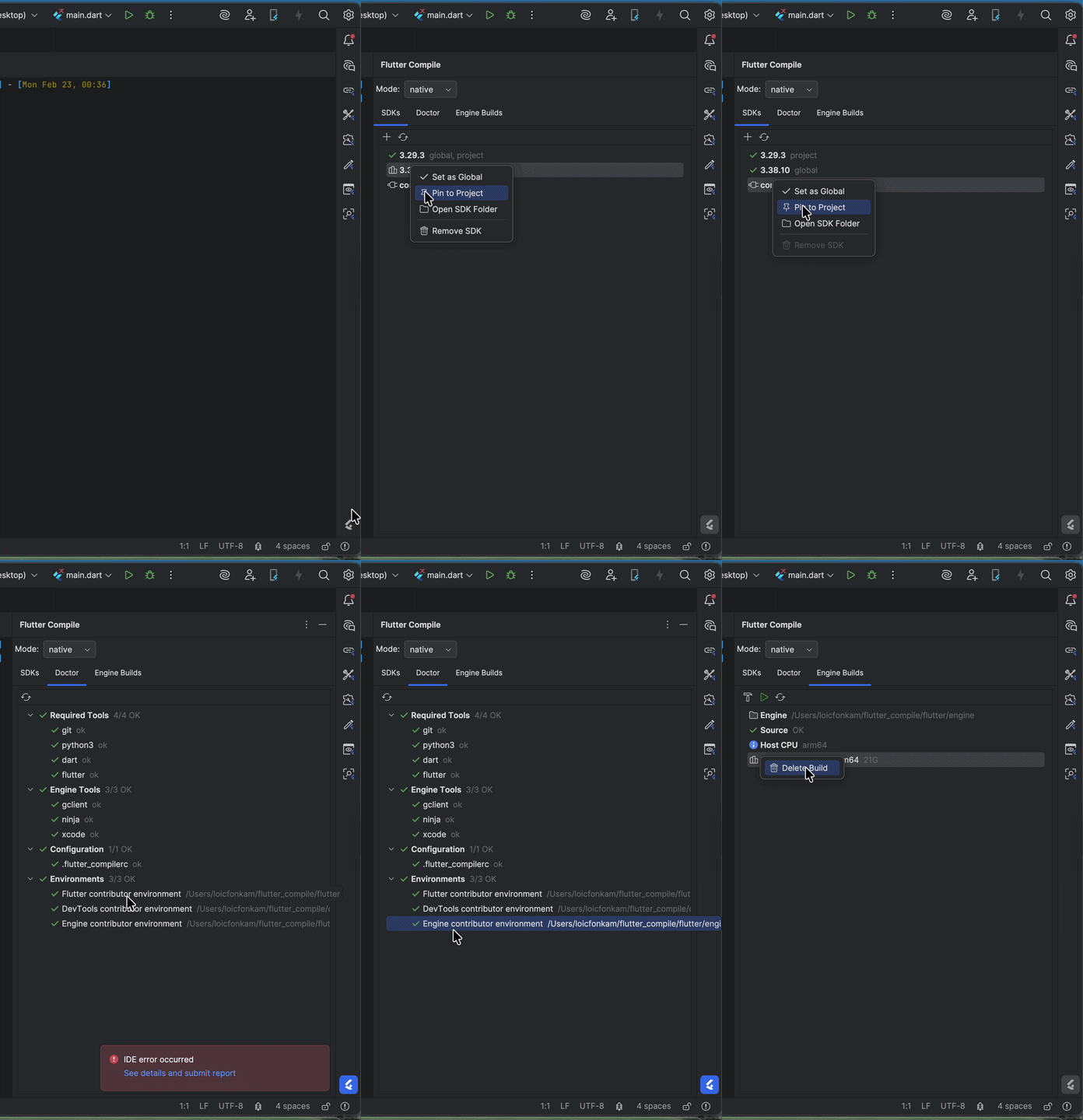
What you get:
- Tool window with three tabs — SDKs, Doctor, and Engine Builds
- Mode dropdown — toggle between Native and FVM backends from the toolbar
- Toolbar combo box — SDK switcher in the main IntelliJ toolbar for instant version switching
- Context menus — right-click any SDK to Set Global, Pin to Project, Open Folder, or Remove
- Doctor with actions — click the wrench icon on failing checks to install or configure automatically
- File watcher —
.flutter-versionchanges from external tools are picked up immediately - Auto SDK path updates — switching SDKs updates the Flutter SDK path in IntelliJ project settings
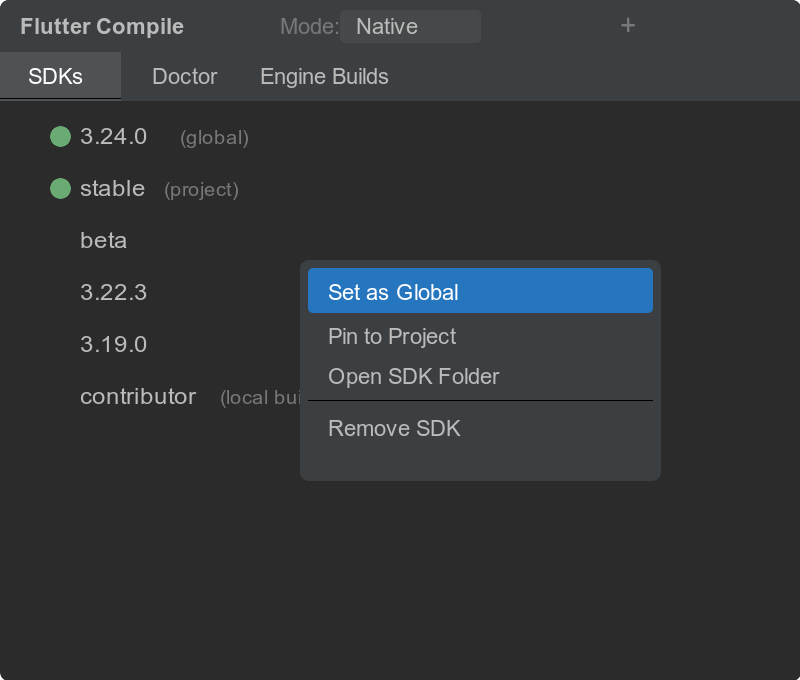
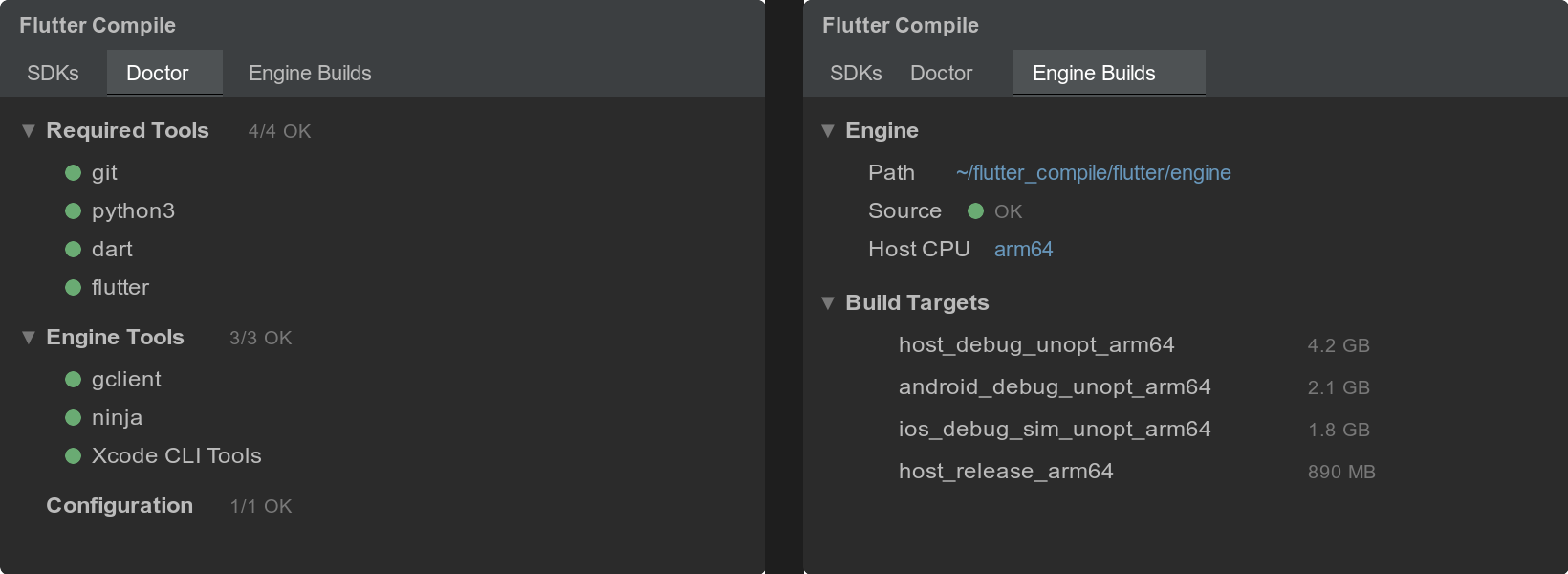
Both extensions support switching between Native and FVM SDK backends. If your team already uses FVM, you don't have to choose — flutter_compile can manage SDKs natively or delegate to FVM. Toggle with one click, and all SDK operations route through whichever backend you prefer.
fcp daemonStarts a JSON-RPC 2.0 server over stdin/stdout. This is how the IDE extensions communicate with flutter_compile, and it's available for any tool that wants to integrate:
{"jsonrpc":"2.0","method":"sdk.list","id":1}
{"jsonrpc":"2.0","method":"sdk.global.set","params":{"version":"3.24.0"},"id":2}
{"jsonrpc":"2.0","method":"doctor","id":3}
The daemon also sends real-time notifications (sdk.changed, config.changed) when files change on disk.
fcp uiAn interactive terminal dashboard with four tabs: SDKs, Environments, Builds, and Doctor. Navigate with arrow keys, install SDKs with i, refresh with r, and manage everything without leaving the terminal.
| Command | Alias | What it does |
|---|---|---|
sdk install <ver> |
Install a Flutter SDK | |
sdk list |
sdk ls |
List installed SDKs |
sdk global [ver] |
Set/show global default | |
sdk use [ver] |
Pin/show per-project SDK | |
sdk exec <cmd> |
Run through resolved SDK | |
sdk remove <ver> |
Delete an SDK | |
install flutter |
i flutter |
Set up framework contributor env |
install engine |
i engine |
Set up engine build env |
install devtools |
i devtools |
Set up DevTools contributor env |
sync |
sy |
Sync all envs with upstream |
build engine |
b engine |
Compile the engine |
run |
r |
Run app with local engine |
test |
t |
Test with local engine |
clean |
c |
Manage build outputs |
status |
st |
Engine config overview |
config |
cf |
Read/write settings |
doctor |
dr |
Health check |
daemon |
JSON-RPC server for IDEs | |
ui |
Terminal dashboard | |
update |
up |
Self-update |
If you're a Flutter app developer who works across multiple Flutter versions, flutter_compile gives you SDK management with per-project isolation and IDE integration — similar to FVM, but with the option to use either backend.
If you're a Flutter contributor — whether you're fixing a framework bug, adding an engine feature, or working on DevTools — flutter_compile automates the entire setup-build-test cycle that currently requires following wiki pages and remembering arcane commands.
If you're building Flutter tooling, the daemon provides a clean JSON-RPC interface for IDE or CI integration.
dart pub global activate flutter_compile
fcp doctor- GitHub: github.com/FlutterPlaza/flutter_compile
- pub.dev: pub.dev/packages/flutter_compile
- VS Code: Marketplace
- IntelliJ: JetBrains Marketplace
flutter_compile is open source (BSD-3-Clause) and maintained by FlutterPlaza. Contributions welcome.